
Think of your Chart of Accounts in QuickBooks as the filing system for every dollar that moves through your business. It’s not just a list; it’s the foundational blueprint that organizes every single transaction into its proper place, giving you a crystal-clear map of your financial health.
Without it, you're just guessing.
Your Financial Blueprint: What is the Chart of Accounts?
At its core, the Chart of Accounts (COA) is the command center for your company's finances. It’s the framework that dictates where every sale, every bill, and every payment gets recorded. A well-built COA means you can pull accurate reports in seconds. A messy one? That leads to confusion, bad data, and a massive headache come tax time.
Getting this right from the start is the secret to smoother operations, insightful financial reporting, and ultimately, smarter business decisions. This isn't just a "nice to have" feature; it's the cornerstone of solid bookkeeping. In fact, with QuickBooks projected to hold over 86.49% of the US accounting software market by 2026, mastering the COA is a non-negotiable skill for modern business owners.
The Five Core Account Types
Every transaction your business makes will fall into one of five main categories. Getting these straight is the first and most important step to building a COA that actually works for you.
To make this easier to visualize, here’s a quick breakdown of what each account type does and a few common examples you’ll see in almost any business.
QuickBooks Account Types Explained
| Account Type | What It Tracks | Common Examples |
|---|---|---|
| Assets | Everything of value your company owns. | Checking Account, Accounts Receivable, Inventory, Company Vehicles |
| Liabilities | Everything your company owes to others. | Credit Card Debt, Accounts Payable, Bank Loans, Sales Tax Payable |
| Equity | The net worth of your business (Assets – Liabilities). | Owner's Investment, Retained Earnings, Common Stock |
| Income | All the money your business earns. | Product Sales, Service Fees, Consulting Income, Interest Earned |
| Expenses | All the money your business spends to operate. | Rent, Payroll, Marketing, Office Supplies, Software Subscriptions |
Understanding these five pillars is the key to organizing your financial data in a way that tells a clear and accurate story about your business performance.
Inside QuickBooks Online, you'll see all these accounts laid out in a clean, organized list.
This dashboard gives you a complete overview of every financial category, letting you see account balances and types at a glance.
Key Takeaway: A disorganized COA leads to messy books. The goal isn't just to record transactions but to categorize them in a way that provides clear, actionable insights into your business's performance.
Knowing how to properly classify your transactions is absolutely critical for understanding your tax implications and profit maximization. Each account tells a small piece of your financial story, and when put together, they paint the entire picture.
Building Your Chart of Accounts From Scratch
Once you’ve got a handle on the basic structure, it’s time to roll up your sleeves and build your company’s financial framework. Whether you're starting from scratch or cleaning up the default list QuickBooks gave you, a thoughtful approach now will save you a world of headaches later. The goal is to create a chart of accounts in QuickBooks that’s a perfect mirror of how your business actually runs.
Before you add a single account, take a moment to think like a CFO. What numbers do you need to see to make smart decisions? Do you need to track sales by product line? Or maybe you want to see how much you’re spending on Google Ads versus Facebook ads? Answering these questions first turns your COA from a simple list into a powerful strategic tool.
Getting Started with New Accounts
Adding a new account in QuickBooks is pretty simple. You’ll just head over to the Chart of Accounts (it’s usually under the 'Accounting' tab in the left-hand menu) and click the 'New' button. This is where you tell QuickBooks exactly what the account is for.
This whole process is about turning raw transaction data into clean, easy-to-read reports.
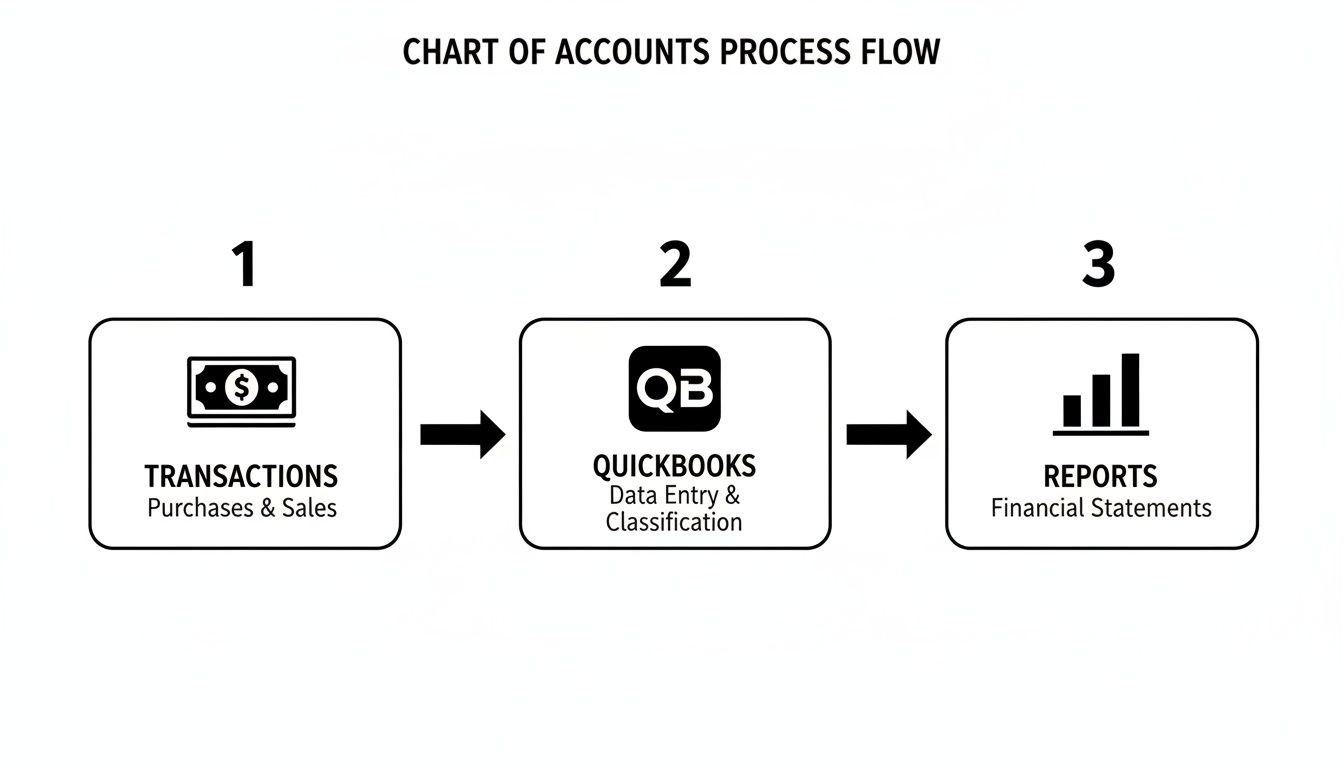
As you can see, the COA is the engine that takes all your daily financial activity and turns it into real business intelligence.
When you create an account, QuickBooks will prompt you for two key details: the Account Type and the Detail Type.
- Account Type: This is the big one. Your choice here puts the account into one of the five main categories—Asset, Liability, Equity, Income, or Expense. This single decision determines where it shows up on your Balance Sheet or Profit & Loss statement.
- Detail Type: This is a more specific sub-category. It helps QuickBooks classify things a bit further, which is especially useful for mapping accounts to tax forms. It’s important, but the Account Type is what really drives your financial reports.
If you’re just getting your company file set up, our complete guide on how to set up QuickBooks will walk you through the initial configuration from day one.
Tailoring to Your Industry
QuickBooks gives you a huge head start with its industry-specific templates. As of 2025, the QuickBooks Chart of Accounts includes 31 tailored templates, giving you a solid foundation whether you’re a retailer, a non-profit, or a contractor. For instance, construction firms—which make up about 15% of QuickBooks users in the U.S.—get specialized sub-accounts for job costing. That feature alone can improve project profitability by up to 20%.
Let's look at what this actually means. A marketing agency’s income accounts might look like this:
4010 - SEO Services4020 - PPC Management4030 - Content Creation
A general contractor, on the other hand, needs totally different accounts under Cost of Goods Sold:
5010 - Subcontractor Costs5020 - Building Materials5030 - Permits and Fees
Importing Your COA from a Spreadsheet
Coming over from another accounting system? You can import your existing chart of accounts using a spreadsheet. This is an incredibly useful feature, but it demands some precision—get the formatting wrong, and it won’t work.
Pro Tip: When importing, make sure your account names and sub-account structures in the Excel or CSV file are perfect. For sub-accounts, you need to use a colon format like
Parent Account:Sub-accountin the account name column. I've seen entire imports fail because of one tiny typo. Double-check everything before you click upload
Strategic Naming and Numbering Conventions
Once you’ve got the basics set up, it’s time to get strategic. The real magic of a well-organized chart of accounts in QuickBooks isn't just having the accounts; it's how you organize them. How you name and number everything is the difference between a financial dashboard that gives you clear answers and a jumbled list that just leaves you confused.
Think of it like setting up a physical filing cabinet. You wouldn't just toss all your papers in randomly, would you? The same principle applies here—you're creating a logical, intuitive filing system for every dollar that moves through your business.

If you don't impose a structure, QuickBooks will just list your accounts alphabetically. That might sound fine, but in practice, it’s a mess. For a law firm, this could mean ‘Health Insurance’ and ‘Malpractice Insurance’ are separated by dozens of other expenses, making it a headache to see your total insurance spend. A simple numbering system fixes this instantly.
Why You Should Use Account Numbers
Trust me on this—turn on account numbers. It's a quick setting change in QuickBooks, but the organizational payoff is huge. Numbers force your accounts into a logical order on reports, grouping similar items together no matter what you name them.
The standard approach, and one I always recommend, is to assign number ranges to each of the main account types.
Here’s a solid framework to start with:
- 1000s – Assets: Think
1010for your main Checking account or1200for Accounts Receivable. - 2000s – Liabilities: This is where you'd put
2010for a business Credit Card or2500for Sales Tax Payable. - 3000s – Equity: Use this range for accounts like
3010Owner’s Investment or3200Retained Earnings. - 4000s – Income: All your revenue streams go here, like
4010for Product Sales or4020for Service Fees. - 5000s & 6000s – Expenses: I often use the 5000s for Cost of Goods Sold and the 6000s for general operating expenses like
6010Advertising or6560Rent.
When you use this system, all your income accounts cluster together at the top of your Profit & Loss statement, followed by a clean, organized list of your expenses. It makes spotting trends and analyzing your financials so much faster.
Establishing Consistent Naming Rules
Your naming convention is just as important as your numbering. The goal here is crystal-clear consistency. Vague or overly casual names like ‘Power Bill’ or ‘Adobe’ are a bookkeeper's nightmare because they create ambiguity.
A much better approach is to use parent accounts to group similar expenses, then get specific with sub-accounts.
Let's say you're a marketing agency. Instead of having five different top-level accounts for software, you could structure it like this:
- Parent Account:
6500 - Software & Subscriptions - Sub-accounts:
6510 - Software: CRM6520 - Software: Project Management6530 - Software: Design Tools
This way, you can see your total software spend (6500) at a glance or collapse the parent account to see the details. It takes the guesswork out of bookkeeping and ensures anyone reviewing your financials knows exactly where the money is going.
I see this all the time: people create way too many top-level accounts. It turns the Chart of Accounts into a cluttered, unmanageable monster. The key is finding that sweet spot—enough detail for good insights, but not so granular that you get lost in the weeds.
Ultimately, a smart naming and numbering system creates a framework that can grow with you. As your business gets more complex, this organized foundation will keep your reports clean, accurate, and truly useful for making decisions.
Keeping Your Chart of Accounts Spotless
Getting your chart of accounts in QuickBooks set up is one thing. Keeping it clean and functional month after month? That's the real work. I like to think of it as a garden—it needs consistent attention to thrive. If you let it go, it quickly gets overgrown with duplicate, unused, and confusingly named accounts, making a mess of your financial data.
This isn't just about being tidy. A well-managed Chart of Accounts can seriously slash your administrative workload. In fact, keeping your COA optimized can cut financial reporting time by as much as 50%. It’s amazing how quickly businesses can accumulate hundreds of useless accounts over the years, which just clutters up reports and makes bookkeeping a nightmare.
A little proactive effort here goes a long way, saving you hours of headaches, especially when tax time rolls around.
The Quarterly Review Checklist
You don't need to micromanage your accounts daily, but a quarterly check-in is the perfect rhythm to prevent "COA bloat." It’s a simple, structured way to make sure your financial foundation stays solid and useful.
Here’s a straightforward checklist I run through with my clients:
- Hunt for Duplicates: Pull up your Profit & Loss report. Do you see accounts that sound suspiciously similar, like "Advertising" and "Marketing Spend"? These are usually perfect candidates to be merged into one.
- Find the Ghosts: Head over to the "For my accountant" reports in QuickBooks and look for accounts with a zero balance for the entire period. If an account hasn't seen any action all year, it’s probably just taking up space.
- Check Your Naming: Scan your list of account names. Are they still clear and consistent? Now's the time to rename something vague like "Misc Software" to something more descriptive, like "Software: Project Management," before it gets used for the wrong thing.
How to Merge and Deactivate Accounts the Right Way
When you spot a duplicate account, your gut reaction might be to hit "delete." Stop right there. Deleting an account can wreck your historical data and cause all sorts of problems down the line. Instead, you have two much safer options: merging or inactivating.
Merging Accounts: This is your go-to move for true duplicates. Let’s say you have transactions posted to both "Office Supplies" and "Office Expenses." You can combine them. Just edit the account you want to eliminate, change its name to exactly match the one you're keeping, and QuickBooks will prompt you to merge them. Simple as that. All the old transactions will be neatly moved into the remaining account.
Inactivating Accounts: What if an account is no longer in use but holds important historical data, like a closed bank account? In that case, you’ll want to make it inactive. This hides it from dropdown menus so no new transactions can be posted to it, but it keeps your past reports completely intact. You should almost never, ever delete an account.
My Pro Tip: Before you merge or deactivate anything, always run a quick report on that account first. It gives you a final chance to see exactly what transactions are in there, so you don't accidentally hide or misclassify something critical. This one little step has saved me from some major cleanup projects over the years.
This kind of disciplined, regular maintenance is what separates messy books from reliable ones. For a more detailed guide on getting your finances in order, take a look at our complete year-end bookkeeping checklist. A little consistency is all it takes to keep your Chart of Accounts a powerful tool instead of a cluttered mess.
7. Tackling Common Chart of Accounts Mistakes
Let's be honest—even the most meticulous bookkeepers run into Chart of Accounts issues. A small mistake might seem harmless, but it can quickly throw off your reports and give you a completely skewed picture of your company's financial health. Spotting and fixing these common slip-ups is a crucial skill for keeping your books clean and reliable.
The goal here isn't just about fixing one transaction. It's about restoring the integrity of your entire financial reporting system. So, let’s dive into some of the most frequent errors I see in a QuickBooks Chart of Accounts and, more importantly, how to get them sorted out.

Miscategorizing Major Purchases
One of the biggest blunders I see is a major purchase getting coded as a simple expense instead of an asset. Imagine buying a $5,000 piece of machinery and dumping it into "Office Supplies." That one entry will tank your profit for the month and make your company look less valuable on the balance sheet. It’s a classic mistake with serious ripple effects.
The fix involves reclassifying the transaction with a journal entry. Here’s how you’d do it:
- Debit the correct Fixed Asset account (e.g.,
1500 - Machinery & Equipment). - Credit the Expense account where it was mistakenly posted (e.g.,
6560 - Office Supplies).
This journal entry effectively shifts the value from your Profit & Loss statement over to your Balance Sheet, which is exactly where it needs to be. Now you can properly depreciate that asset over its useful life.
I always tell my clients to establish a capitalization threshold—a simple rule like anything over $2,500 becomes an asset. Any single purchase below that amount is expensed. This one policy can prevent 90% of these categorization headaches.
Creating Redundant or Duplicate Accounts
It happens all the time. You end up with separate accounts for "Web Hosting," "GoDaddy Fees," and "Domain Hosting," all tracking the same type of expense. This splinters your spending across multiple lines, making it impossible to see what you're really spending in that category.
Thankfully, the solution is simple: merge the redundant accounts.
In QuickBooks, you can just edit the accounts you want to eliminate. Change their names to be an exact match of the primary account you want to keep. QuickBooks will pop up a prompt asking if you want to merge them. Say yes, and it will automatically move all the old transactions into that one primary account, tidying up your P&L instantly.
Your Top QuickBooks COA Questions, Answered
Once you start working in your chart of accounts, you’ll inevitably run into some practical questions. It’s one thing to get it set up, but it’s another to manage it day-to-day and understand the why behind certain features.
Here are some of the most common questions we hear from business owners, with straight-to-the-point answers.
How Many Accounts Can I Have in QuickBooks?
This comes up all the time, especially for businesses on a growth spurt. The answer isn't one-size-fits-all—it depends entirely on your QuickBooks Online plan.
Most plans (Simple Start, Essentials, and Plus) cap you at 250 accounts. That might sound like a huge number, but if you're tracking things with any level of detail, you can hit that ceiling surprisingly fast.
When you need more, you'll have to upgrade. The QuickBooks Online Advanced plan is the only one that gives you an unlimited chart of accounts, which is a must-have for more complex businesses that need that kind of scalability.
Should I Use Account Numbers?
QuickBooks makes them optional, but my answer is always a firm yes. I can't recommend this enough.
Without account numbers, QuickBooks just lists everything alphabetically. This means your "Rent Expense" could be miles away from "Repairs and Maintenance" on your reports, making them a jumbled mess to analyze.
By enabling account numbers and using a logical system (like 1000s for Assets, 4000s for Income, 6000s for Expenses), you force your reports into a clean, intuitive structure. It’s a tiny settings change that brings a massive improvement in clarity.
What's the Difference Between Inactivating vs. Deleting an Account?
This is a critical distinction. You should almost never, ever delete an account.
-
Inactivating an account is the right move. It hides the account from dropdown lists for any new transactions, but it keeps all the historical data perfectly intact. This is the only way to clean up your COA without compromising the integrity of your past financial reports.
-
Deleting an account is permanent and dangerous. It can corrupt your historical data if even a single transaction was ever posted to it.
Key Takeaway: Think of inactivating as putting an account in storage. Deleting is like throwing it in the incinerator. Always choose storage.
Can I Import a COA With Opening Balances?
Yes, you can. QuickBooks lets you import your chart of accounts from a spreadsheet and include opening balances with an "as of" date right in the file. This is handy if you're switching over from another accounting system.
That said, a lot of seasoned bookkeepers (myself included) prefer a different approach for a cleaner audit trail. We import the COA with all zero balances first. Then, we create one big, clean journal entry to establish all the opening balances at once. It’s an extra step that pays off in clarity later on.
Once your accounts are organized, the next challenge is putting them to use correctly. Check out our guide on how to categorize expenses in QuickBooks to make sure every dollar ends up in the right place.
At Allied Tax Advisors, we turn accounting complexities into clear, actionable strategies for your business. Let our experts manage your QuickBooks bookkeeping so you can focus on growth. Contact us today for a consultation.